
Eight suites that run the whole school

Teacher first: 10+ AI tools with CBSE and ICSE content
Explore Assist →
From the first doubt to the chapter exam, one connected path
For Class 3 to 12, CBSE and ICSE, with JEE and NEET for Class 11 and 12. Every chapter in four steps.
Where would you like to sign in?
School login
For staff and admins · app.schoolcanvas.com
Student login
For students · student.schoolcanvas.com
Popular with schools
Popular with students and parents
AI tools for teachers: what helps in a real classroom
Quizzes in seconds, a worksheet for every student, a second pair of eyes on the question paper. Where AI tools genuinely help teachers, and where the teacher should always decide.

On this page
- The simple rule: AI drafts, the teacher decides
- The tools teachers actually use
- Inside the lesson: who answers the next question
- After the lesson: practice that fits each student
- At exam time: a second pair of eyes
- Where the teacher should always decide
- Help for new teachers
- What about student data?
- Getting started
It is Sunday evening, and Ms Fernandes, who teaches Class 9 science at Green Valley Public School, is still at her desk. She needs ten questions for tomorrow’s quick check on motion, a worksheet for the section that struggled last week, and she has to finish checking the half-yearly paper her colleague drafted. None of this is teaching, but all of it has to be done before she can teach.
This is where AI tools for teachers earn their place. Not as a replacement for the teacher, and not as a chat window that needs clever prompts, but as a quick first draft for the work that surrounds every lesson. Here is what helps in a real classroom, based on how teachers use the 10+ AI tools in Assist, the AI-powered LMS from Schoolcanvas.
The simple rule: AI drafts, the teacher decides
AI is good at producing a reasonable first version quickly: a set of questions, a worksheet, a summary. It doesn’t know your students, what you covered last Thursday or which question confused half the class. So the teachers who get the most out of it treat every output as a draft. They read it, change what doesn’t fit and keep what does. That habit matters more than any single tool.
The tools teachers actually use
In Assist, the AI tools sit in one place called AI-Play. Teachers pick a tool, the class and the chapter, and get a draft to edit. They are grouped by the job they do:
| Job | Tools | What it saves |
|---|---|---|
| Plan | Lesson plan generator | A curriculum-aligned plan for any chapter, split into periods |
| Create | Power questions, instant quiz, worksheet maker, activity sheets, customised practice material | Fresh questions and practice for any topic and level, with answer keys |
| Review | Question paper validator, on-screen evaluation | A check on papers before they go out, and help with marking written answers |
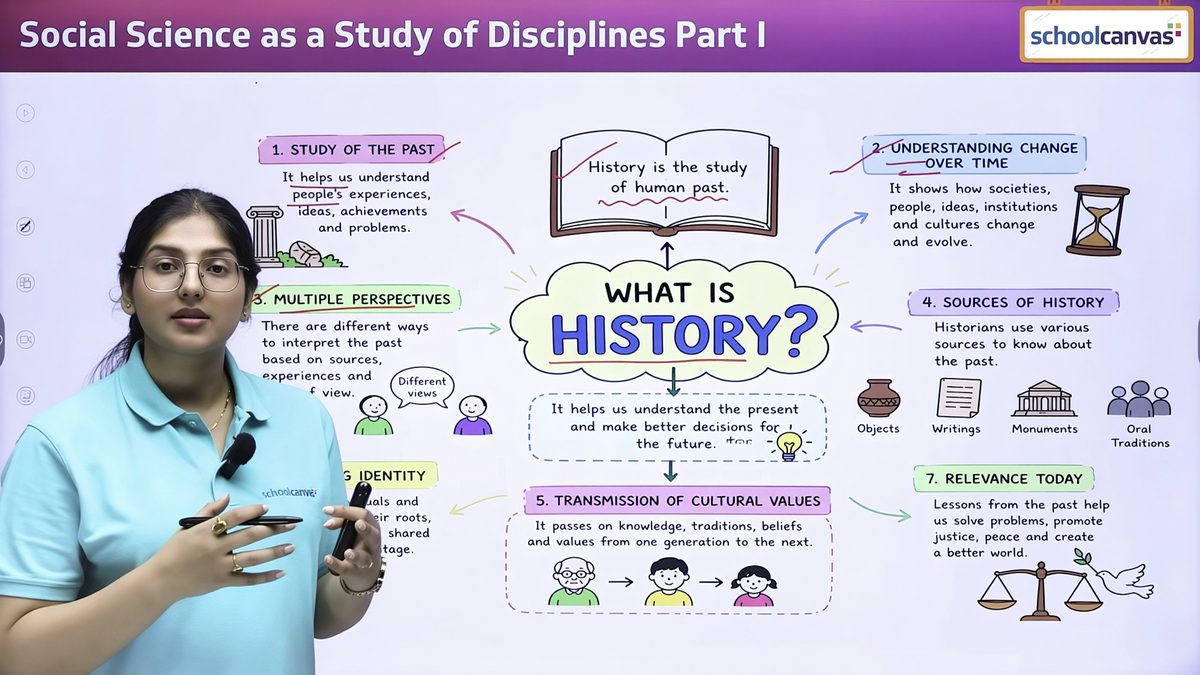
| Revise | Mind maps | One-page chapter summaries for the smart screen or print |
| Engage | Crosswords | A quick way to revise key terms |
| Early years | Colouring sheets, alphabet and spelling sheets | Printable pages for Nursery and the early years |
Power questions are worth a special mention. Because they are generated fresh each time, each section and each year gets new practice rather than the same static set that students pass around.
Inside the lesson: who answers the next question
Most classroom quizzes are answered by the same few hands. The in-chapter quiz in Assist works differently: as the teacher runs quick questions during the lesson, Assist looks at each student’s learning history and picks the right student for each question. Every child takes part, and the teacher sees at once who has understood and who hasn’t. The questions can be ones our academic team prepared or ones AI-Play drafted for that lesson.
After the lesson: practice that fits each student
One worksheet for forty students is too easy for some and too hard for others. Dynamic worksheets generate a unique worksheet for each student and keep assigning follow-up worksheets until the student reaches the score the teacher sets. The teacher sets the bar; the system does the sorting.
Behind this sits the diagnostic report, which teachers can run often. It shows where each student lacks in a subject, down to the concept, and a custom teaching plan is created for that student from it. For students preparing for board exams, a readiness score shows how ready each student is, so teachers know where to focus.
At exam time: a second pair of eyes
Two tools help most when papers are being set and marked:
- Question paper validator. Before a paper reaches students, it checks the total marks, chapter coverage, difficulty mix and questions that are too similar. It catches the kind of slip that is easy to miss at 11 pm.
- On-screen evaluation. For written answers, AI suggests marks and feedback. The teacher reviews, adjusts and confirms each one. For objective papers, the integrated OMR scanner uploads marks in one click.
Marks from Assist flow into the report cards in the Schoolcanvas academics and examination suite, so they don’t need to be typed again. Our post on report card software explains what happens next.
Where the teacher should always decide
- Final marks. AI can suggest; the teacher confirms every written answer.
- What goes to students. Read every AI-drafted question before it is used. Check facts, language and level.
- Remarks to parents. Comments about a child should come from someone who knows the child.
- Pace. A lesson plan is a starting point. The teacher knows when a class needs another period on a topic.
Help for new teachers
Many schools find it hard to hire experienced teachers, and new teachers need time to settle. Alongside the AI tools, Assist gives every teacher refresher videos in English and Hinglish, animated presentations for the smart board, lesson plans aligned with NEP and NCF, and concise chapter-wise handouts for revision, following the latest NCERT textbooks for CBSE classes. A new teacher can walk into class with a well-prepared lesson from the first week, and spend their energy on the students instead of on preparation.
What about student data?
This is the first question many principals ask, and they are right to. In Assist, student data is never used to train public AI models, and school data is never sent to an external AI provider for training. Parents and staff are increasingly aware of the DPDP Act, so it is worth asking any AI vendor the same question. Our guide to the DPDP Act for schools lists what else to check.
Getting started
Start small. Ask two or three teachers to use one tool each for a month, for example the instant quiz in one class and the question paper validator for the unit tests, and share what worked at the next staff meeting. Assist covers Nursery to Grade 12 for CBSE, ICSE and state boards, works on any smart screen, and can be used with the Schoolcanvas ERP or on its own. Training starts online, and our team can also visit the school.
You can see all the tools in Assist, our AI LMS for schools, or see them with your own chapters in a free demo, followed by a 1-month free trial.
Common questions.
Will AI tools replace teachers?
No. AI is useful for first drafts, such as questions, worksheets and lesson plans, and for checks, such as validating a question paper. Teachers decide what is used, confirm every mark and know their students in a way software cannot.
Do teachers need to learn to write prompts?
Not in Assist. Teachers pick a tool, the class and the chapter, and get a draft they can edit.
Is student data used to train the AI?
No. In Assist, student data is never used to train public AI models, and school data is never sent to an external AI provider for training.
Can AI mark written answers?
Assist’s on-screen evaluation suggests marks and feedback for written answers, and the teacher reviews, adjusts and confirms each one. Objective answer sheets can be scanned with the OMR scanner.
Which classes and boards does Assist cover?
Nursery to Grade 12, for CBSE, ICSE and state boards, along with IIT-JEE, NEET and Olympiad preparation.
Where this lives in the product.




Talk to us about your school.
A 45-minute walkthrough with a school software specialist, tailored to your board, size and processes. We’ll call you within 4 working hours to fix a time.
Your free demo can cover
- Your own data, formats and processes
- The modules you need, from admissions to fees
- The apps for parents, teachers and staff
- Assist, the AI LMS for your teachers
- A setup plan and a quote for your school
- Call back in 4 working hours
- Free data migration
- 1-month free trial
Book my free demo
Takes 30 seconds. No commitment.